LEGO Education Computer Science & AI
Game On
Build a live action video game, then use if-then conditionals, a timer, and a win sequence to make the game your own.
What You Will Learn
An if-then statement just means: if something happens, then something else is going to happen. In computer science, these are called conditionals. For example: if the player touches this coin, then the score goes up.
You use conditionals in your daily life too. If you’re hungry, then you eat. If it’s raining outside, then you probably grab an umbrella.
In the real world
Video games run on conditionals. If a character jumps up to hit a block, then they get coins, points, or a mushroom. If a character touches a heart symbol, then they get an extra life. If a character makes a correct move, then they get a point.
Today you will:
- Build a live action video game with a controller, a player cart, and a color sensor.
- Complete an if-then conditional so the game plays a sound when it sees red.
- Add a forever loop, a timer, and a win sequence using the standard blocks.
- Give your game a theme and new rules to make it your own.
Background
How would you design your own video game? Think about the games you like to play:
- In Mario, he jumps, collects coins, and tries to get to the end of the level by jumping onto the flagpole.
- In Dredge, a fishing game Mr. Spratt has been playing, you collect fish, deliver them to the fishmonger to make money, and use that money to upgrade your ship.
- In Pokémon, maybe you like collecting so many different monsters, or maybe it’s the fighting.
- In The Legend of Zelda, maybe it’s the exploration.
What features do you enjoy? Character design, boss fights, difficult games, sports games, or making a high score in an old school video game?
A live action video game
Today you’re making a live action video game. That means the game doesn’t take place on a screen. It takes place in real life, right in front of you. Look at it once it’s built: how do you think it’s going to work, and what does success look like in this game?
Build It
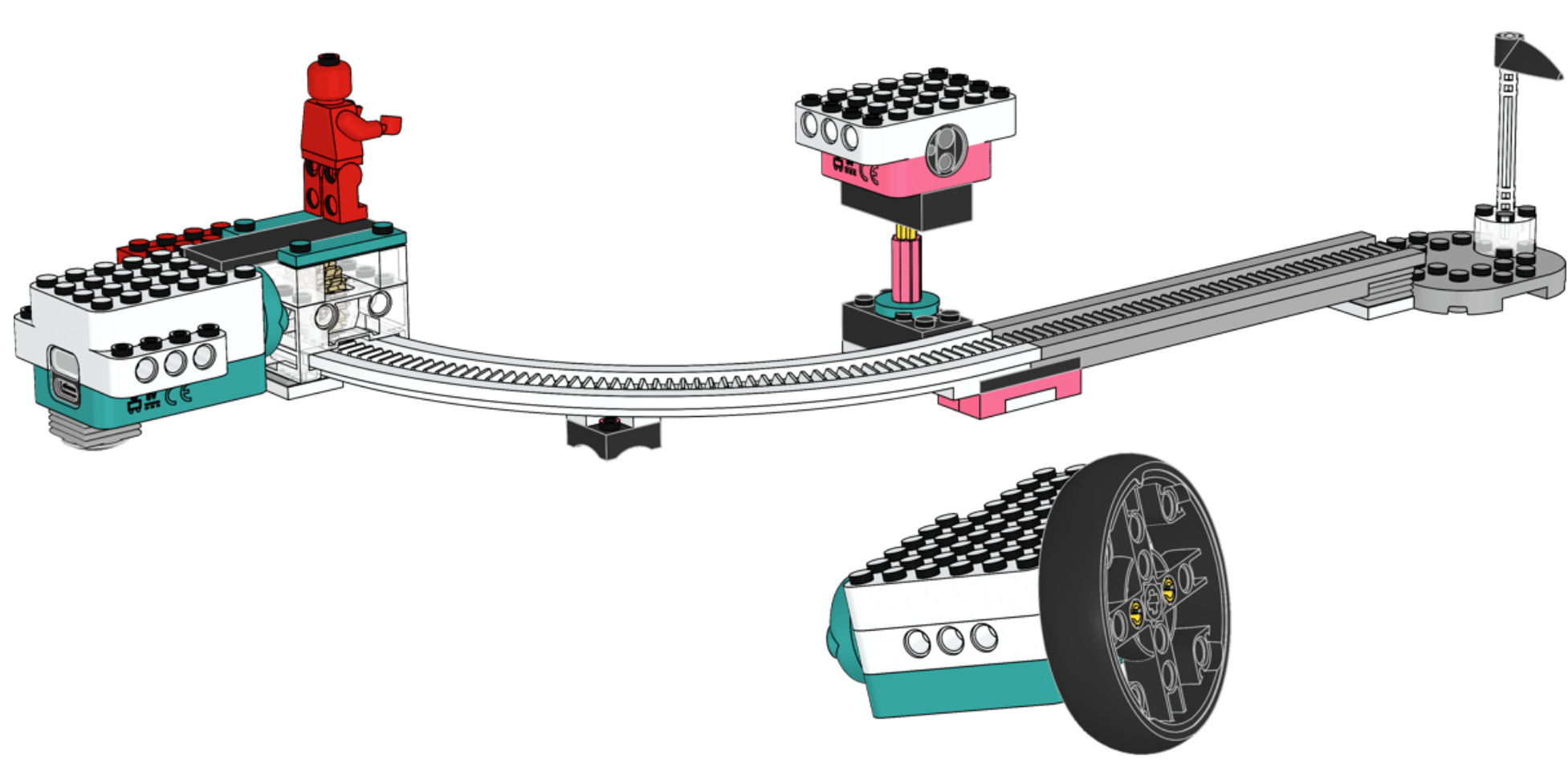
You are building a track with a starting plate at one end and a flag at the other, a player cart on the single motor that rides the track, a color sensor that watches the track, and a controller: a big wheel on the double motor.
You will need
- LEGO Education Computer Science & AI kit
- Building instructions, starting on page 80
- The single motor, the double motor, and the color sensor
- All four minifigures, even if you’re building on your own. You’ll use them for a few different things.
Watch out for these
- 1Share the work. With partners, set out your different characters to split up the build by color.
- 2Build the cart’s gearbox. Put a tan gear in the gearbox, then slide the gray axle through the gray part of the single motor and right on through.
- 3Don’t forget the skid plate. Attach a black smooth skid plate to the bottom of a gray square. It goes on the bottom of the cart at step 3 on page 83.
- 4Find three white plates. The white plates with holes in the middle are 8 long, and you’ll use three of them. Grab any extras you find while you look.
- 5Build the flag. It uses a white flexible rod with a flag piece on top, a piece you may not have used before.
- 6Grab extra rubber pieces. The rubbery piece with pink studs on top has grip on the bottom. Take a couple of extras. They help hold the track still later.
- 7Build the gray track upside down. Put the black flat plate into the bottom of it, then the pink pieces. These pink arch pieces are flat, not the smooth arch from SPIKE Essential.
- 8Hold the double motor the right way. The power button is on the back, and the flat wide part is the front. Match the picture, then put the big wheel on the left wheel. This is your controller.
- 9Check which way the curve turns. When you hold your build up to the picture, the white curve track should turn away from you. Mr. Spratt attached his the wrong way at first.
- 10Put the color sensor in the middle, where the white and gray tracks meet, looking at the track.
- 11Push the cart onto the track; don’t slam it down. The motor goes on the outside of the track. You’ll know it’s on when you can slowly push it along the track.
- 12Finish up. Attach the red starting plate onto the gray brick, and put a character on the cart. Then turn on all your devices by pressing the button once on each, and hold the same connection card next to each one. Any color works.
Check it
Your flag is on your right, the color sensor is looking at you, and the motor is on the outside of the track. When you slide the cart along the track, it passes right in front of the color sensor.
Coding
Connect your game
- 1Go to code.legoeducation.com and enter PIN 1311. Check that the page says Game On.
- 2Choose the color of the connection card you used. Mr. Spratt used red.
- 3Connect the single motor: press its button, skip the instructions (you already scanned your card), and click pair when it’s beeping. You’ll hear a sound when it’s connected.
- 4Connect the double motor and the color sensor the same way.
Preparing?
If the screen says Preparing and your color sensor flashes rainbow lights, it’s updating. You didn’t do anything wrong. Don’t turn it off; it only takes a moment.
Something not working?
If you don’t connect all three devices, or a battery is dead on one, this code won’t work correctly. That’s the first thing to check.
The starter code
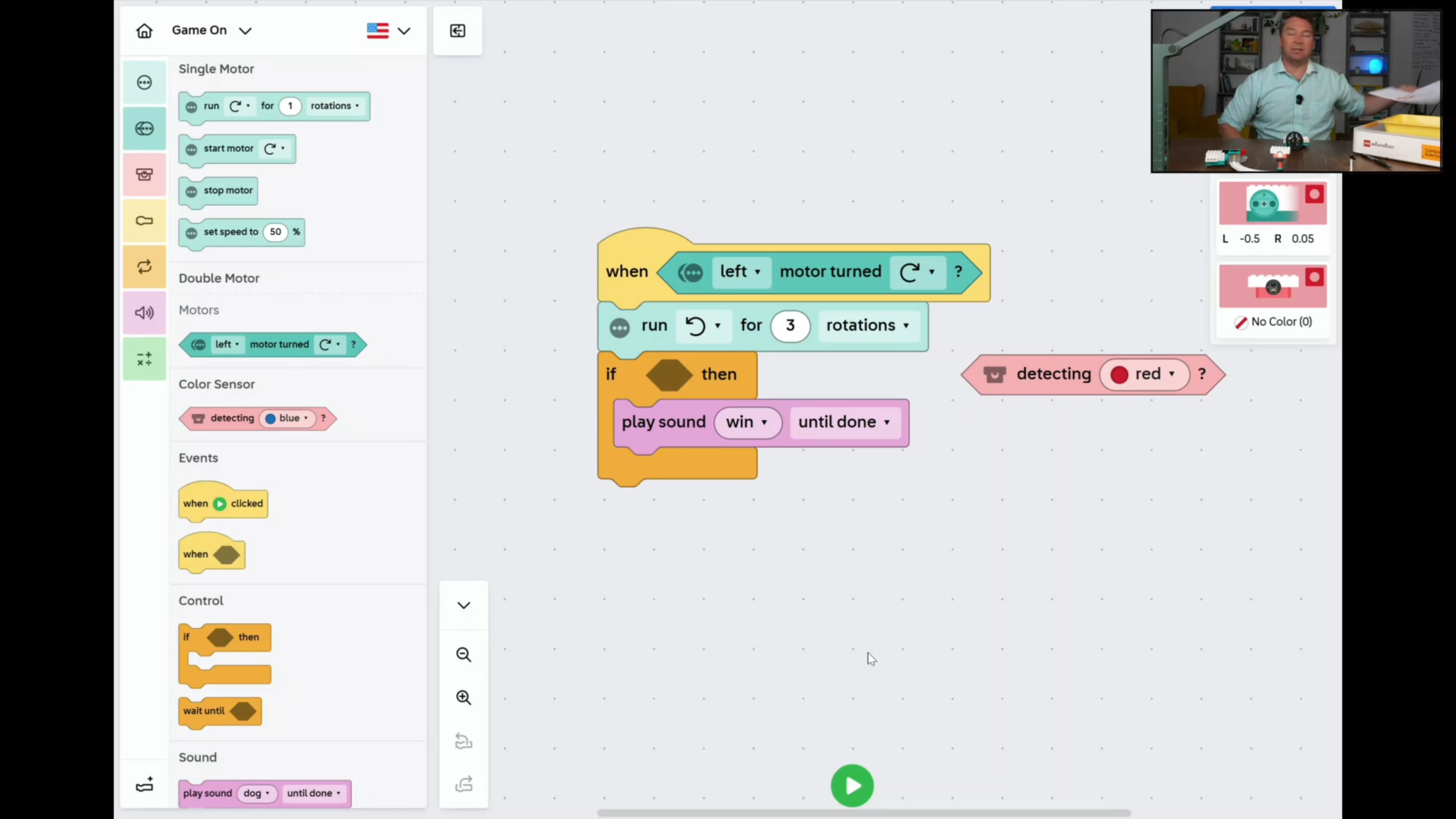
The double motor’s wheel is your controller. Turning it should make something happen. Look at the code and predict: what do you think it does?
| Block | What it does |
|---|---|
| when left motor turned ↻? | An event. It runs when you turn the controller wheel clockwise. |
| run ↺ for 3 rotations | The single motor drives the player cart along the track. |
| if ⬢ then | A conditional with an empty space. |
| play sound win until done | Inside the if: plays the win sound. |
Off to the side is a block that isn’t attached yet: detecting red?
Try it
- 1Drag detecting red? into the blank in the if block, so it says “if detecting red then play sound win until done.”
- 2Press Play. You know the program is running when you see the stop sign at the bottom of the screen.
- 3Turn the controller wheel. The cart moves, and when your character goes in front of the color sensor, you hear the win sound.
- 4Press Stop. Complete the sentence: if the color sensor sees ___, then ___.
Careful
If you turn the wheel too many times, the cart goes past the end of the track and there’s no way to get back. Slide it back onto the track. If your character falls off, put it back on.
Go left or right
Make the controller drive your character either way, depending on which way you turn the wheel.
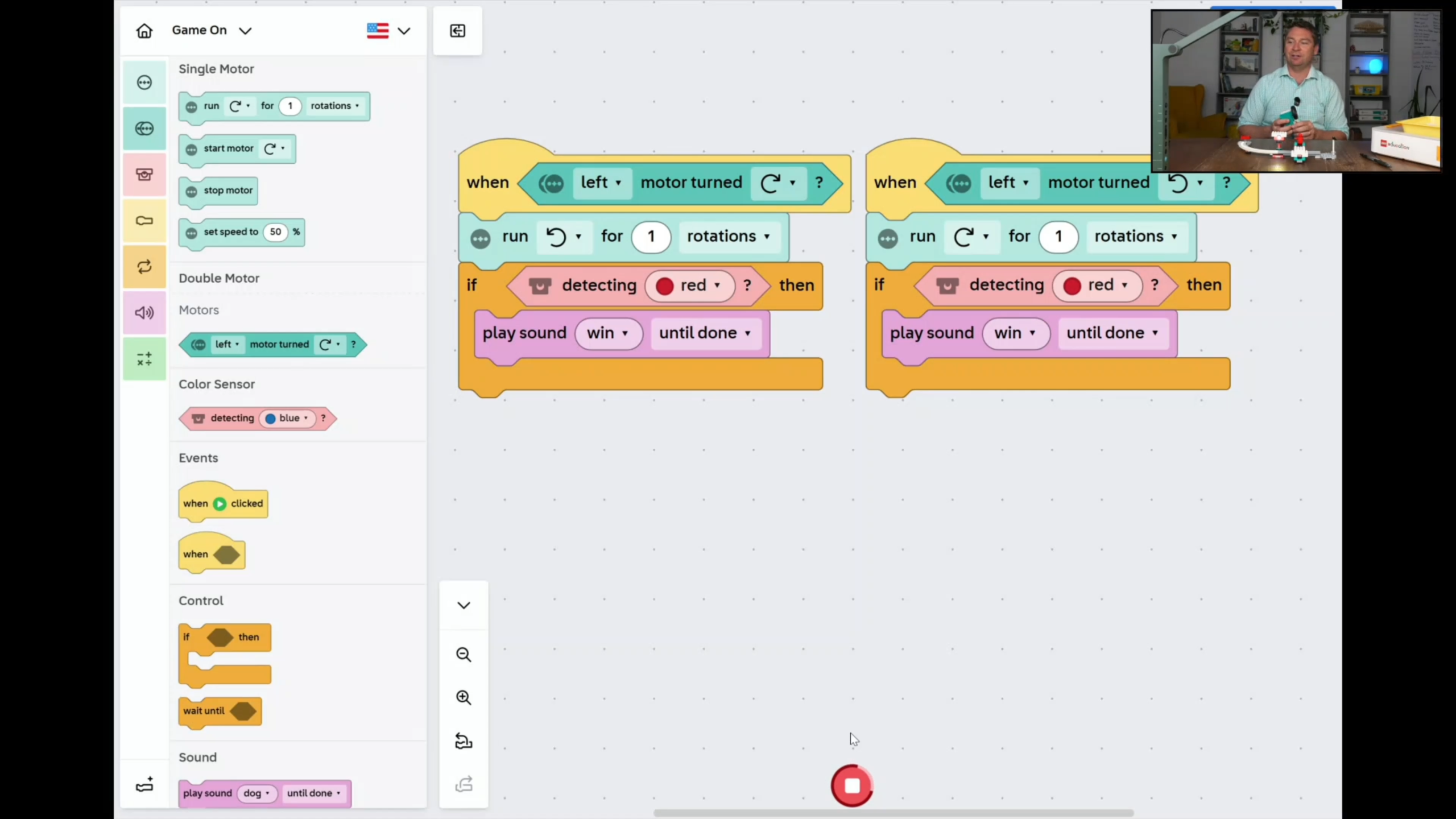
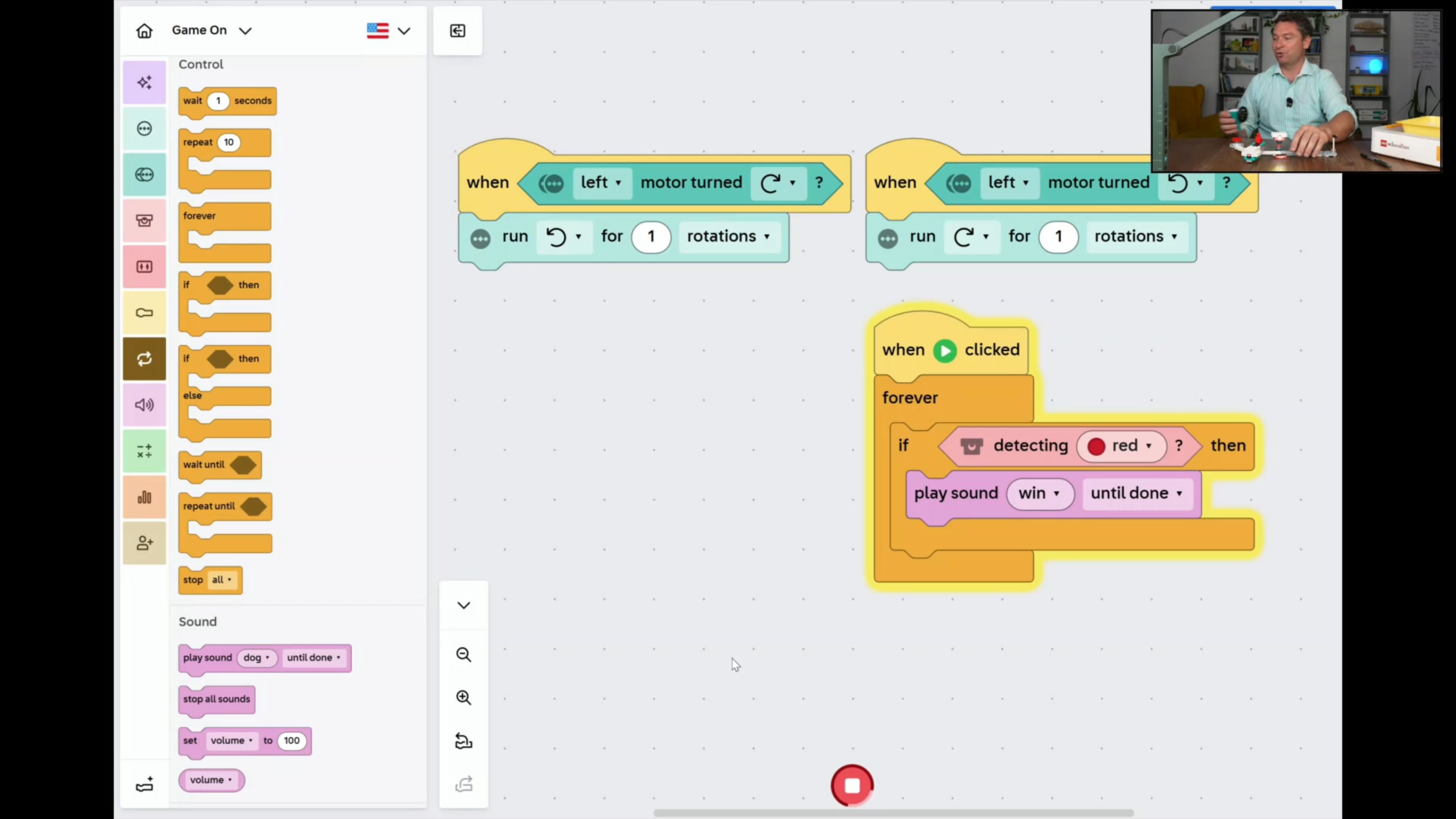
- 1Right-click the stack and click Copy, then right-click again and click Paste. Put the two stacks side by side.
- 2In the second stack, change when left motor turned to counterclockwise ↺, and change the single motor to run the opposite direction, clockwise ↻.
- 3Three rotations is too far. Change both numbers to 1 to give you more control of your character.
- 4Press Play. Turn the wheel one way, and the cart goes to the edge. Turn it the other way, and it comes back.
| Block | What it does |
|---|---|
| when left motor turned ↻? | Turn the wheel clockwise… |
| run ↺ for 1 rotations | …and the cart moves one way. |
| if detecting red? then play sound win | Checks for red. |
| when left motor turned ↺? | Turn the wheel counterclockwise… |
| run ↻ for 1 rotations | …and the cart moves the other way. |
| if detecting red? then play sound win | Checks for red. |
Always watch for red
Now the code checks for red in two places. You can fix that with its own event.
- 1Add a new when ▶ clicked event. Move one “if detecting red” under it, and delete the second one.
- 2Test it. The sound doesn’t play! When you click Play, the program only checks one time to see if it’s detecting red. It worked before because it checked every time the wheel turned.
- 3Get more blocks: click the plus sign in the bottom left corner and choose Standard Blocks.
- 4From Control, where the loops are, put a forever loop under when clicked, with the if inside it. Now the program is always checking for red.
Track sliding around?
On a smooth table, the track can turn as your character drives by. Attach one of those extra rubber pieces under the gray part of the track for more grip.
Add a timer
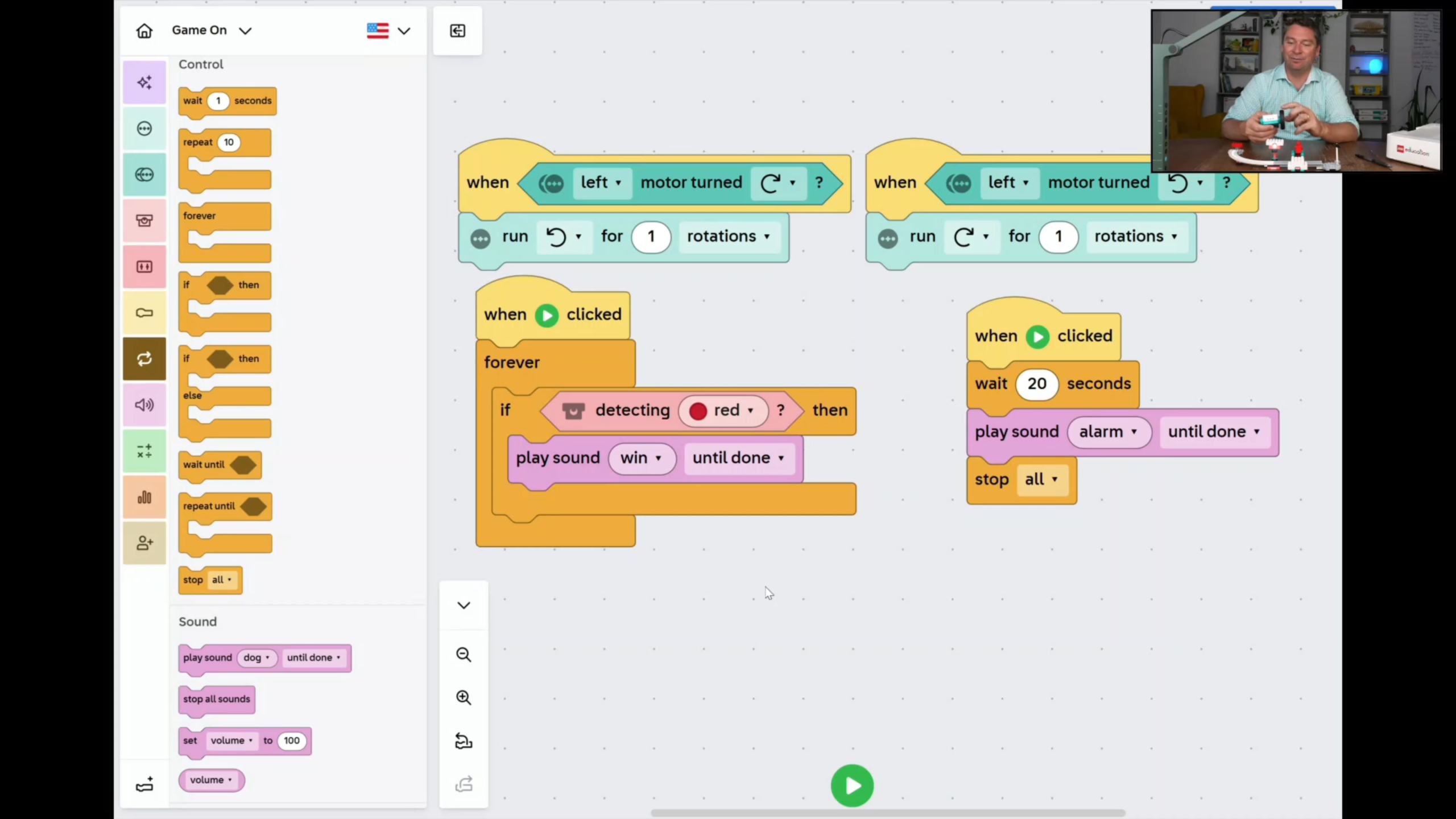
You can have more than one “when ▶ clicked” running at the same time.
- 1Add another when ▶ clicked, then wait 20 seconds. One second isn’t enough time to play.
- 2Add play sound until done. To get a new sound, click the sound name, click Add, and pick alarm. It sounds like you’re about out of time.
- 3From Control, add stop all. If the alarm goes off, you lose, and the game is over.
Color sensor not seeing your character?
Make sure your character is standing up. If the sensor still misses it, it may be too far back. Mr. Spratt moved his color sensor forward one hole, closer to the track.
Make it a real game
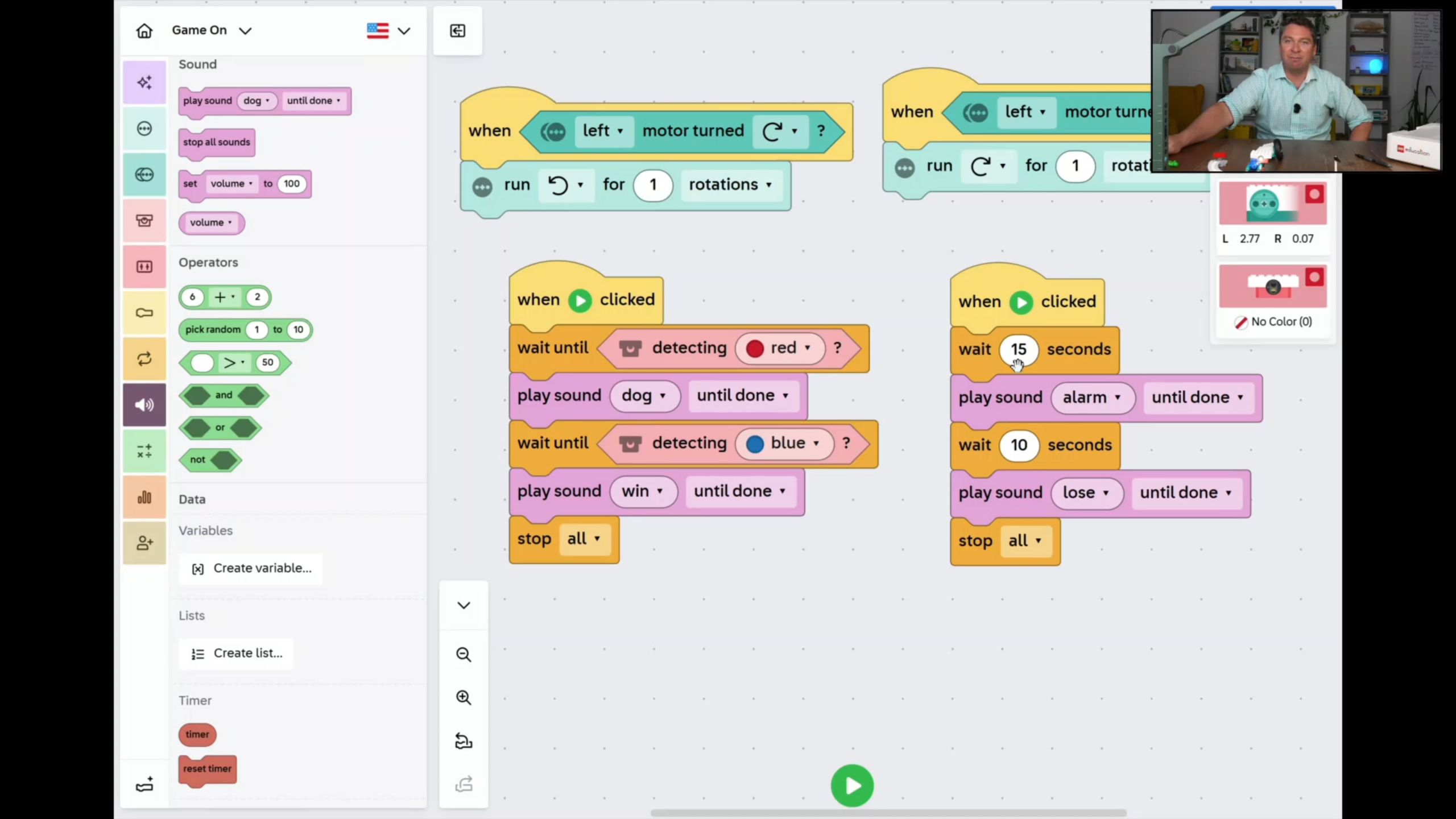
Right now you win automatically just by driving in front of the color sensor. Make the player do more. A wait until block is another type of condition that must be met before anything happens in your code.
- 1Drag away the forever loop. Under when ▶ clicked, add wait until detecting red?, then play sound dog until done.
- 2Copy and paste those two blocks underneath. Change red to blue and the sound to win. Then add stop all.
- 3Change the timer: wait 15 seconds, play the alarm, wait 10 seconds, then play sound lose (add it the same way you added alarm), then stop all.
- 4Put your red character on the cart at the start, and your blue character by the flag.
Play Game On
- 1Press Play. Drive your red character past the color sensor. The dog barks.
- 2Drive to the flag and switch to your blue character. The alarm means you’re halfway out of time!
- 3Drive the blue character in front of the color sensor before the lose sound plays, and you win.
Check it
The controller drives your character both ways. Red passing the sensor plays the dog, then blue passing the sensor plays win and ends the game. If you’re too slow, the alarm plays, then the lose sound, and the game stops. Too hard? Give yourself more time on the timer.
The Challenge
This is a simple game. You have access to all the standard blocks now, so there are lots of ways to make it even better. Make this game your own.
Build it: give your game a theme
Come up with a theme for your game, like an ocean or a forest, and add things onto your build so your player gets more into the idea of the game. You could build obstacles too.
Hint
Keep the track clear so the cart can pass right in front of the color sensor, and keep your characters standing up so the sensor can see them.
Code it: new rules
Program some new rules into your game:
- Make your timer last longer, or shorter for more of a challenge.
- Choose your own sounds.
- Add more steps to the win sequence the player has to follow.
Hint
Every new rule is a conditional. Write it as “if ___, then ___” first, then find the blocks that match.
You know it works when
Someone else can play your game, follow your rules, and either win or lose, and you can explain every rule as an if-then.
Think About It
- 1What happened? What was the conditional doing in the starter code? Complete the sentence: if ___, then ___.
- 2Why? When you moved “if detecting red” under when ▶ clicked, the sound stopped playing. Why did adding a forever loop fix it?
- 3Real world: Your controller is a conditional too: when the wheel turns clockwise, the cart moves one way. What’s a rule in your favorite video game that you could write as an if-then?
Share it: Tell Mr. Spratt all about how you changed the game. What features did you put in? What’s one rule you added?
Extension Challenge
More characters, more steps
You built with all four characters. Add more wait until blocks so the player has to get three or even four characters past the color sensor, in order, before the timer runs out. Give each character its own sound.
Then hand the controller to someone else. Can they figure out your sequence?
Parent Overview
What we learned
A conditional is an if-then statement: if something happens, then something else happens. Video games are full of them, like “if the player touches a coin, then the score goes up.”
What we did
Your child built a live action video game from building instructions starting on page 80: a track with a player cart, a color sensor, and a wheel controller. At code.legoeducation.com (PIN 1311), they completed an if-then so the game plays a sound when it sees red, made the controller drive both ways, and used the standard blocks to add a forever loop, a timer, and a win sequence where the player must bring a red, then a blue character past the sensor before time runs out.
They’ve got it when you see
- They can describe their game’s rules as “if ___, then ___.”
- Turning the wheel one way or the other moves the cart in that direction.
- The game plays win or lose depending on what the player does.
- They’ve added a theme or a new rule of their own.
If they’re stuck
- The code doesn’t work at all: Check that all three devices are connected and charged.
- The screen says Preparing: The device is updating. Wait for it to finish, and don’t turn it off.
- No sound plays: Check the computer’s volume. If “if detecting red” is under when ▶ clicked, it needs a forever loop around it.
- The color sensor doesn’t see the character: Stand the character up, or move the color sensor forward one hole, closer to the track.
- The cart went off the end of the track: Slide it back on.
- The track slides around: Attach an extra rubber piece underneath for grip.
- Can’t find the forever, wait, or stop all blocks: Click the plus sign in the bottom left corner and add Standard Blocks.
Challenge answers
There’s no single right answer for the theme or new rules. Here is the program Mr. Spratt built before turning the game over to students:
| Block | What it does |
|---|---|
| when left motor turned ↻?: run ↺ for 1 rotations | Controller moves the cart one way. |
| when left motor turned ↺?: run ↻ for 1 rotations | Controller moves the cart the other way. |
| when ▶ clicked | Starts the win sequence. |
| wait until detecting red? | Waits for the red character. |
| play sound dog until done | Red made it. |
| wait until detecting blue? | Waits for the blue character. |
| play sound win until done | Blue made it. You win! |
| stop all | Game over. |
| when ▶ clicked | Starts the timer at the same time. |
| wait 15 seconds, play sound alarm until done | Halfway warning. |
| wait 10 seconds, play sound lose until done | Time’s up. |
| stop all | Game over. |
- Build it: Any theme counts, as long as the cart can still pass in front of the color sensor.
Standards connection
- CSTA 2-AP-12: Design and iteratively develop programs that combine control structures, including nested loops and compound conditionals.
- CSTA 2-AP-13: Decompose problems and subproblems into parts to facilitate the design, implementation, and review of programs.
- CSTA 2-AP-17: Systematically test and refine programs using a range of test cases.
- CSTA 2-CS-02: Design projects that combine hardware and software components to collect and exchange data.