Scratch Coding Challenge: Build Flappy Bird
In this challenge, you will build your own version of Flappy Bird in Scratch.
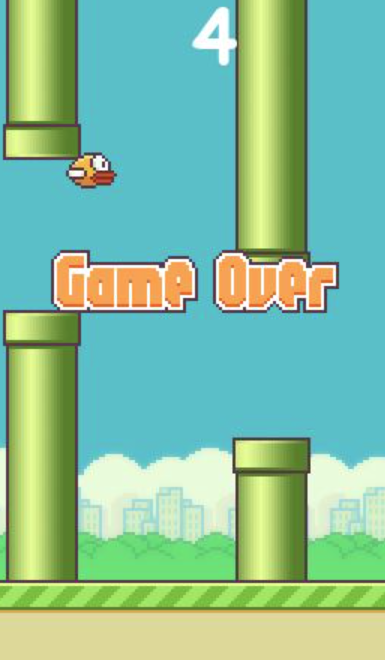
Flappy Bird was one of the most downloaded mobile games in the early days of touchscreen devices. The idea is simple:
- Your bird falls because of gravity
- Every time you press a key, the bird flaps upward
- Obstacles move across the screen
- Your goal is to fly through the gaps without crashing
This isn't meant to be cookbook coding.
Great programmers learn by breaking problems into pieces and experimenting with solutions.
So first you’ll see the core pieces of the game, then you can try building them yourself. After that, you can scroll down for a full walkthrough solution.
The Game Design Challenge
Before looking at the solution, see if you can build these features.
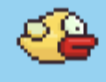
1. Create a Bird
Your game needs a main character.
Your bird should:
- Start near the middle left of the screen
- Be small enough to move easily between obstacles
- Have two flying costumes so it can flap its wings
2. Add Gravity
The bird should constantly fall downward.
When the game starts:
- Gravity should begin pulling the bird down
- The bird should fall faster over time
Hint:
Use a variable to represent gravity.
3. Add Flapping
When the player presses a key:
- The bird should jump upward
- The bird should flap its wings
- The player should not be able to hold the key to fly forever
Hint:
You may need to wait until the key is released before allowing another flap.
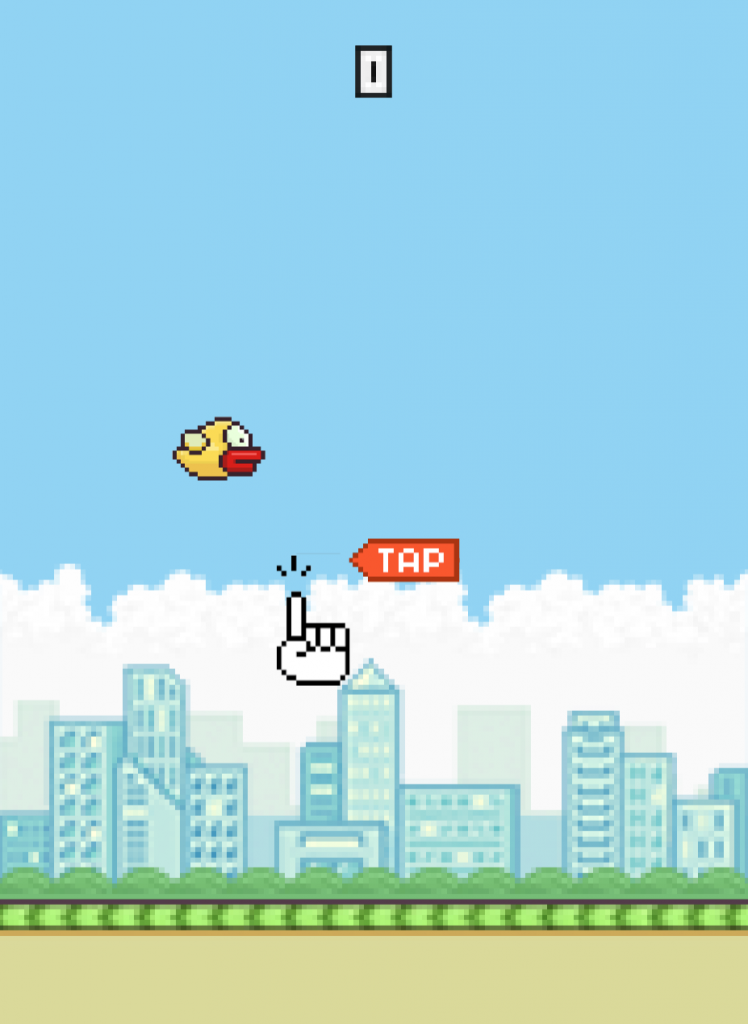
4. Create the World
Your game needs a background.
Ideas:
- A blue sky
- Clouds
5. Create Obstacles
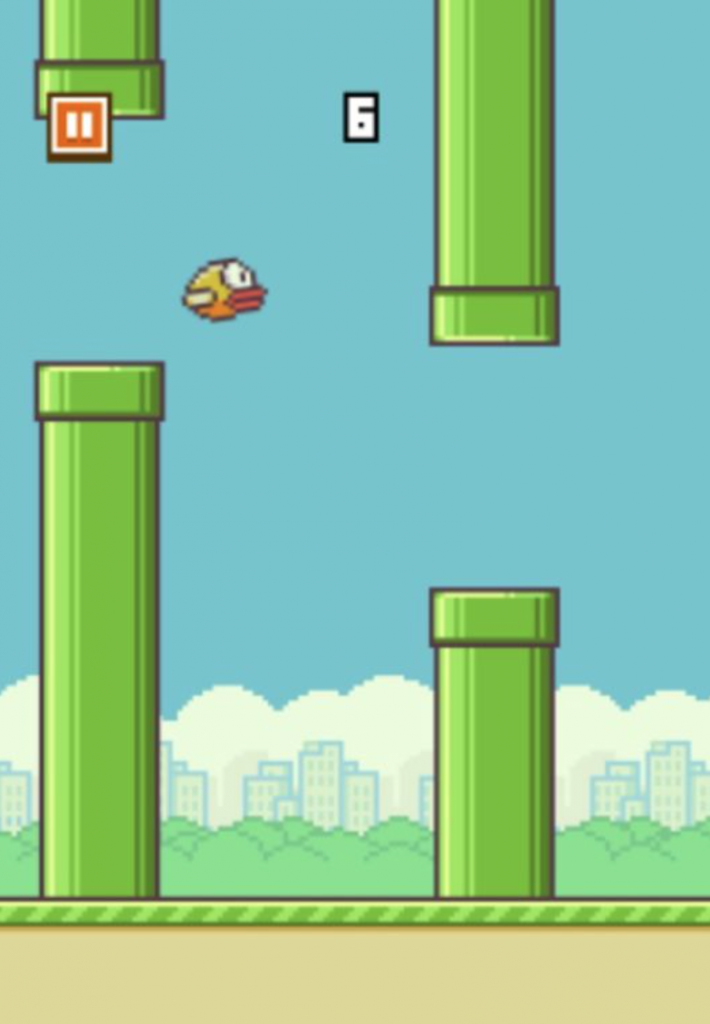
Flappy Bird is about flying between obstacles.
Your obstacles should:
- Appear on the right side of the screen
- Move toward the left
- Disappear when they leave the screen
- Spawn every few seconds
Hint:
Use clones to create new obstacles.
6. Randomize the Obstacles
To make the game interesting:
- Obstacles should appear at different heights
- Players should not be able to memorize the pattern
Hint:
Use the pick random block.
7. Detect Collisions
The game should end when:
- The bird touches an obstacle
When this happens:
- Show a Game Over message
- Stop the game
Hint:
Use broadcast messages.
8. Add a Score
Each time the bird successfully passes an obstacle:
- Increase the score by 1
Full Walkthrough Solution
Below is one way to build the game.
Your solution may look different — and that’s okay!
Here is a Scratch build of the game: https://scratch.mit.edu/projects/1287185411
Step 1: Create the Bird
- Open Scratch
- Click Create
- Delete the default cat sprite
- Click Choose a Sprite
- Select a bird (for example, Toucan)
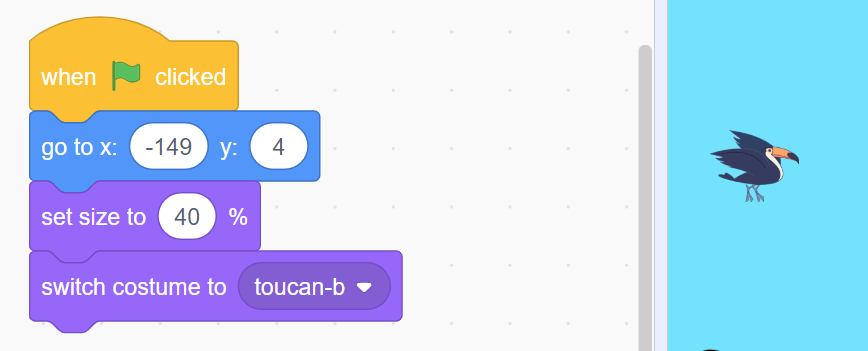
Position the bird:
when green flag clicked
go to x: -120 y: 0
set size to 50%
switch costume to flying costume
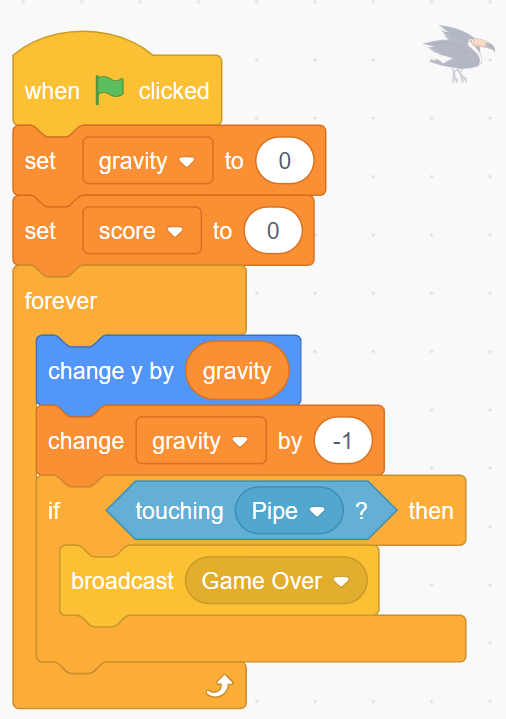
Step 2: Create Gravity
Create a variable called:
gravity
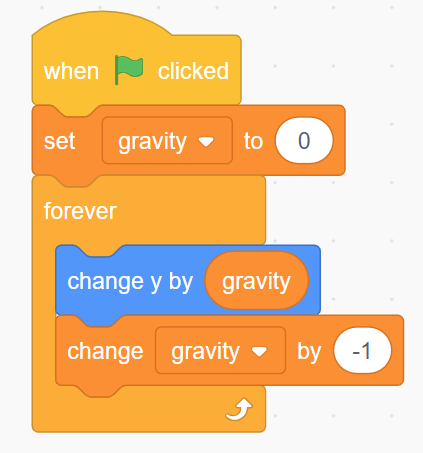
Then add this code:
when green flag clicked
set gravity to 0
forever
    change gravity by -1
Now make the bird move using gravity:
forever
    change y by gravity
The bird will now fall and accelerate downward.
Step 3: Add Flapping
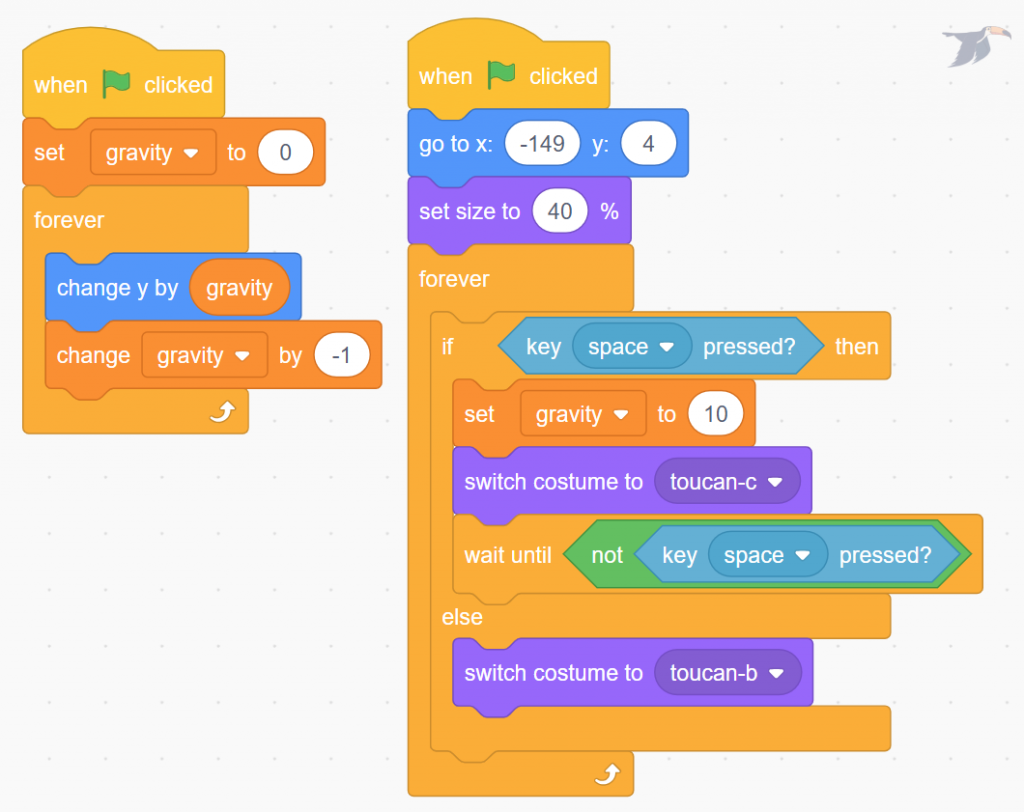
Now allow the player to flap upward.
if <space key pressed>
then
    set gravity to 10
    switch costume to flap
    wait until <not space key pressed>
This does three important things:
- Gives the bird an upward push
- Shows the flapping animation
- Prevents the player from holding the key to fly forever
Step 4: Create the Background
Click Stage → Choose Backdrop → Paint
Create a simple sky:
- Light blue background
- Optional clouds or ground
Step 5: Create the Obstacles
Create a new sprite called Obstacle.
Draw a pipe or tall rectangle.
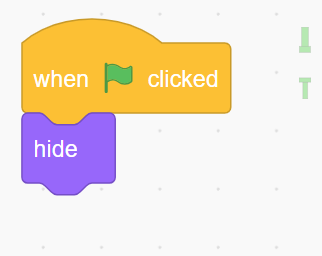
Hide it at the start:
when green flag clicked
hide
Step 6: Spawn Obstacles
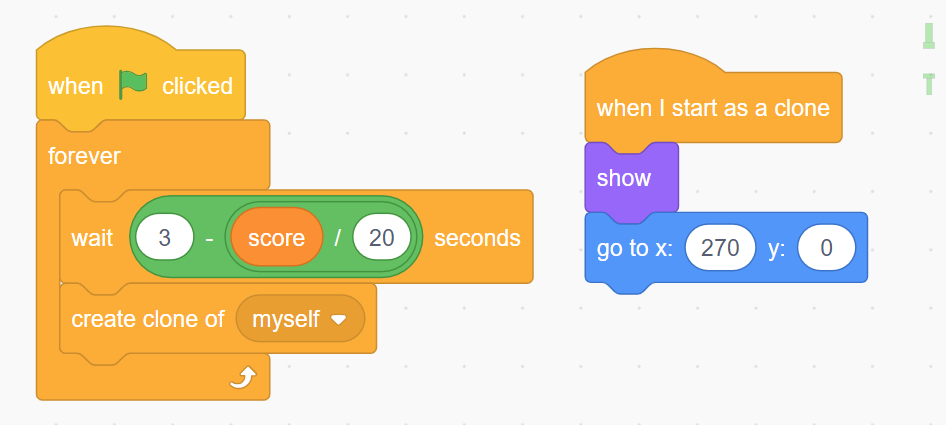
Create clones every few seconds.
when green flag clicked
forever
    wait 3 seconds
    create clone of myself
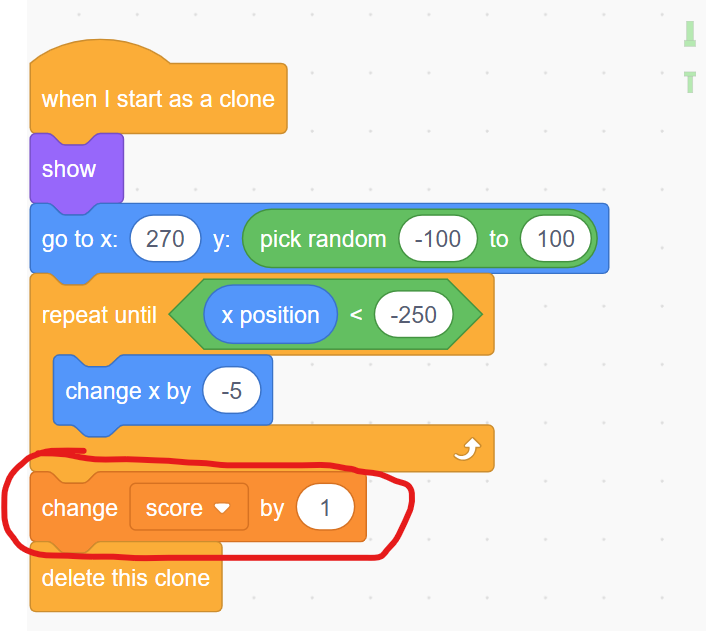
Step 7: Move Obstacles
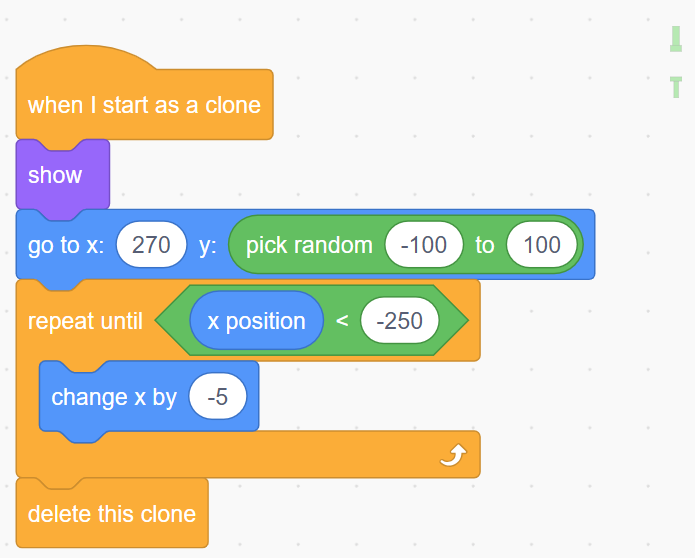
Tell clones what to do when they appear.
when I start as a clone
show
go to x: 270 y: (pick random -100 to 100)
repeat until <x position < -250>
    change x by -5
end
delete this clone
Now obstacles move across the screen.
Step 8: Add Collision Detection
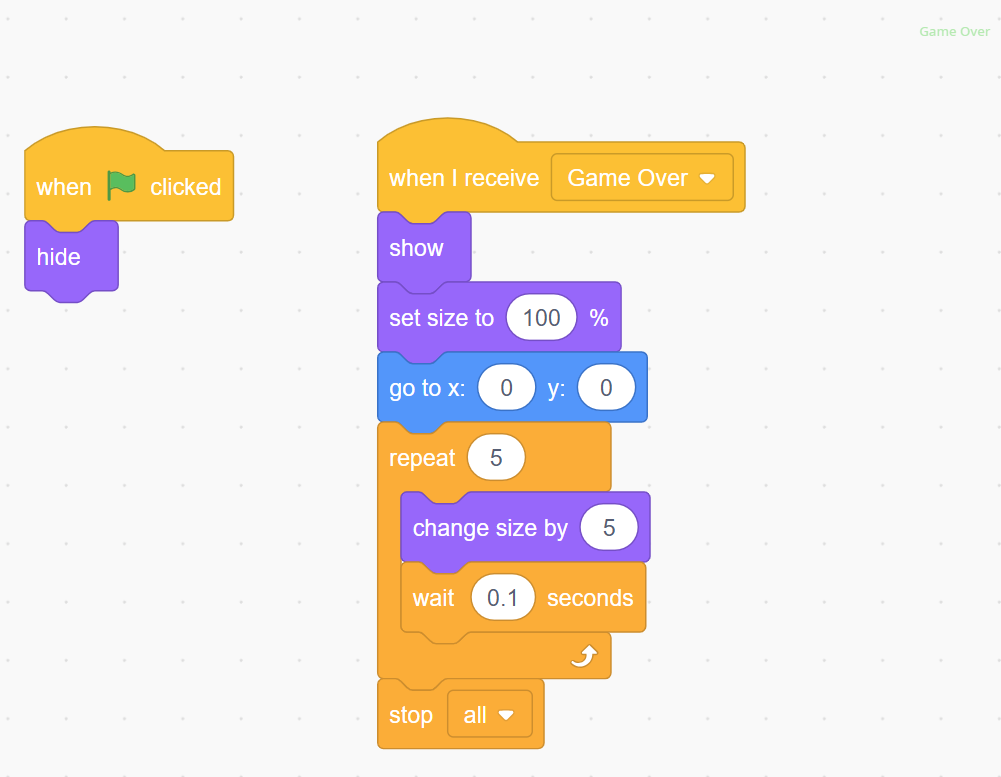
Create a new sprite called Game Over.
Add this code:
when green flag clicked
hidewhen I receive [Game Over]
go to x:0 y:0
show
stop all
Now detect collisions in the bird sprite:
forever
    if <touching obstacle>
    then
        broadcast [Game Over]
Step 9: Add Scoring
Create a variable called:
score
In the obstacle sprite, add this before deleting the clone:
change score by 1
delete this clone
Each time an obstacle leaves the screen, the player earns a point.
Step 10: Test Your Game
Try to beat your high score!
Your game should now include:
✔ Gravity
✔ Flapping controls
✔ Moving obstacles
✔ Random obstacle positions
✔ Collision detection
✔ Game over screen
✔ Score counter
Make Your Game Even Better
Try improving your game with new features:
- Add sound effects when the bird flaps
- Add a sound when you crash
- Add a floor that causes game over
- Speed up obstacles as score increases
- Add background music
- Create different levels
Challenge:
Can you make your game harder the longer someone survives?
That’s how many of the best arcade games work!