Development Guide: Code a Mini Economy Town in Scratch
This guide explains how to build a dice-powered city simulator in Scratch. You will learn how to manage a virtual economy, use cloning to build a visual city, and create a multi-level progression system.
You can check out this project on Scratch. Dicy City Scratch
We made a more polished version here. Check out the YouTube video below.
Step 1: The Economy Engine
The Goal: Create a dice-rolling mechanic that generates money.
- Setup Variables: Create variables for Coins, Dice Total, and Roll Count.
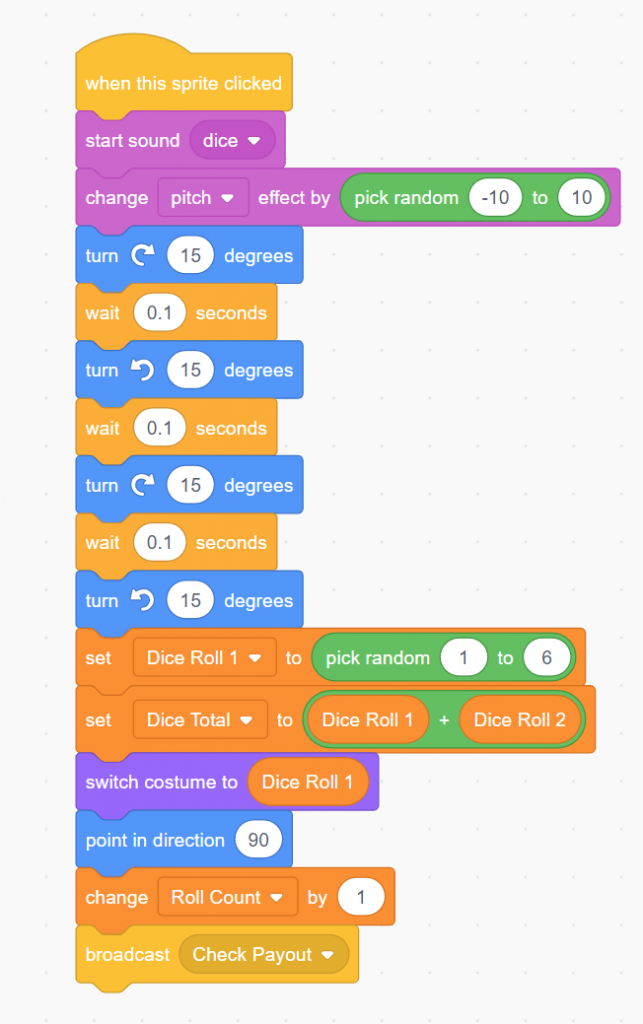
- The Dice Sprite:
- Give your Dice sprite 6 costumes (one for each side).
- When the sprite is clicked, use the pick random 1 to 6 block to set the Dice Total.
- Switch the costume to match the number.
- The Payout System:
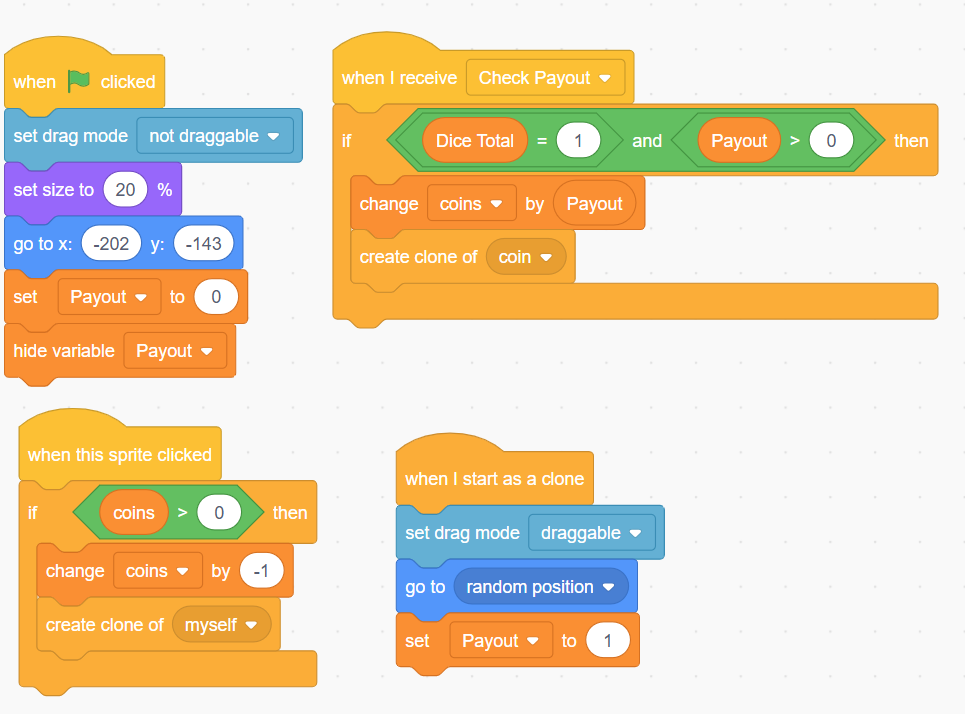
- Use a Broadcast called Check Payout.
- When the dice stops rolling, send the broadcast. Every building you own will "listen" for this and check if the Dice Total matches its specific winning number to give you Coins.
Step 2: Visual City Building (Cloning)
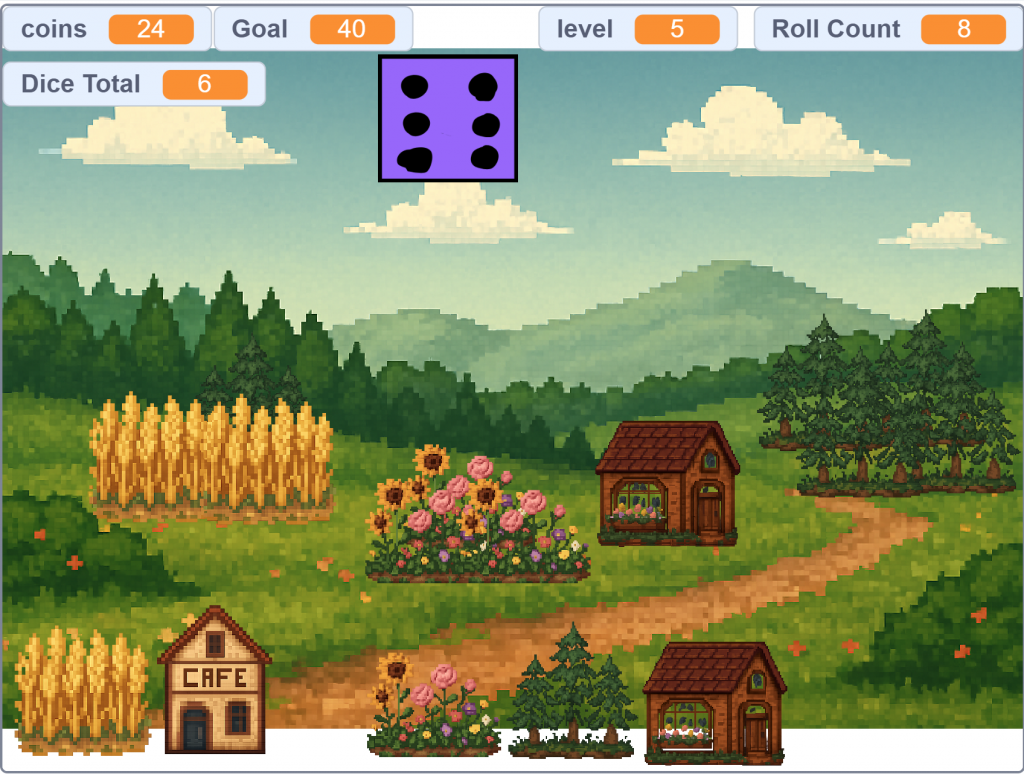
The Goal: Make buildings appear on the screen when you buy them.
- The Building Sprite:
- Create one sprite for every building (Wheat Field, Cafe, Mine, etc.).
- The Buying Logic:
- Create "Buy" code for each building. When clicked, check: if Coins > Cost.
- If successful, subtract the cost from Coins and Create a Clone.
- Cloning the Building:
- Now update the code for When I Start as a Clone.
- Inside that block, update the Payout to the value of what happens when the dice rolls that number.
- Add a script: when I start as a clone, use go to x: (random) y: (random) to place the building in your city area.
- Check Payout
- When I receive Check Payout, check to see if the Dice Roll equals the activation number.
- Update the number of coins by the payout value.
Step 3: Strategic Synergies (Math Operators)
The Goal: Create advanced buildings that give bonuses based on other buildings you own.
- Tracking Collections: Create variables to track totals, such as Total Flower Gardens or Total Mines. Every time you buy one, change that variable by 1.
- The Synergy Logic:
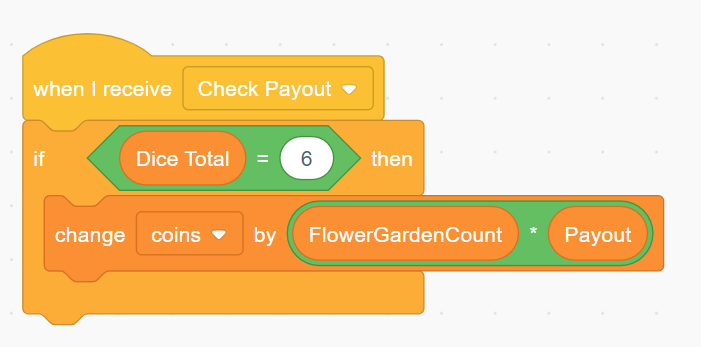
- For a building like the Flower Shop (which pays out based on how many gardens you have), use the Operator blocks.
- When the dice hits the Flower Shop’s number, use: change Coins by (Total Flower Gardens * 3).
- This rewards the player for planning their city layout instead of just buying random items.
Step 4: Level Progression & Resets
The Goal: Create a sense of achievement by unlocking new items and clearing the board for a new challenge.
- The Level Variable: Create a variable called Level.
- Unlocking Content:
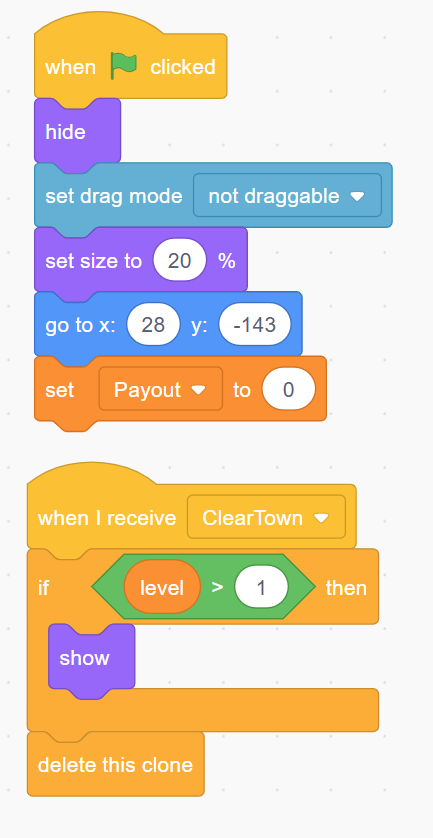
- On your "Buy" buttons, use an if block: if Level > 2 then show else hide.
- This keeps the screen clean and introduces new buildings (like the Mine or Restaurant) only when the player is ready.
- The Level-Up Script:
- Create a script that constantly checks: wait until Coins > Goal.
- When the goal is hit, show a "Level Up!" message.
- The Reset: To start the new level, set Coins to 5, set Roll Count to 0, and use broadcast Clear City.
- All building clones should have a script: when I receive Clear City, delete this clone.
Step 5: Adding Visual "Juice"
The Goal: Use motion to show the player exactly when and where they are earning money.
- Flying Coins:
- Create a small "Coin" sprite.
- When a building clone triggers a payout, it should create clone of Coin.
- The Animation Script:
- Inside the Coin clone: when I start as a clone.
- go to [Building Sprite] (the one that just paid out).
- show.
- glide 0.5 secs to [Coin Counter Display].
- delete this clone.
- Unlocking the Second Die:
- At Level 3, show a new button: "Roll 2 Dice."
- When clicked, change the math to: set Dice Total to ((pick random 1 to 6) + (pick random 1 to 6)). This allows the player to finally hit high-number buildings like the Mine (11 or 12).
Summary of Logic
By the end of this project, you have mastered:
- Events: Using broadcasts to coordinate between the dice, the shop, and the city.
- Cloning: Managing dozens of visual objects without creating dozens of separate sprites.
- Conditionals: Checking if a player has enough money or has reached the correct level to proceed.
- Math Operators: Creating complex economic bonuses that make the game strategic.